
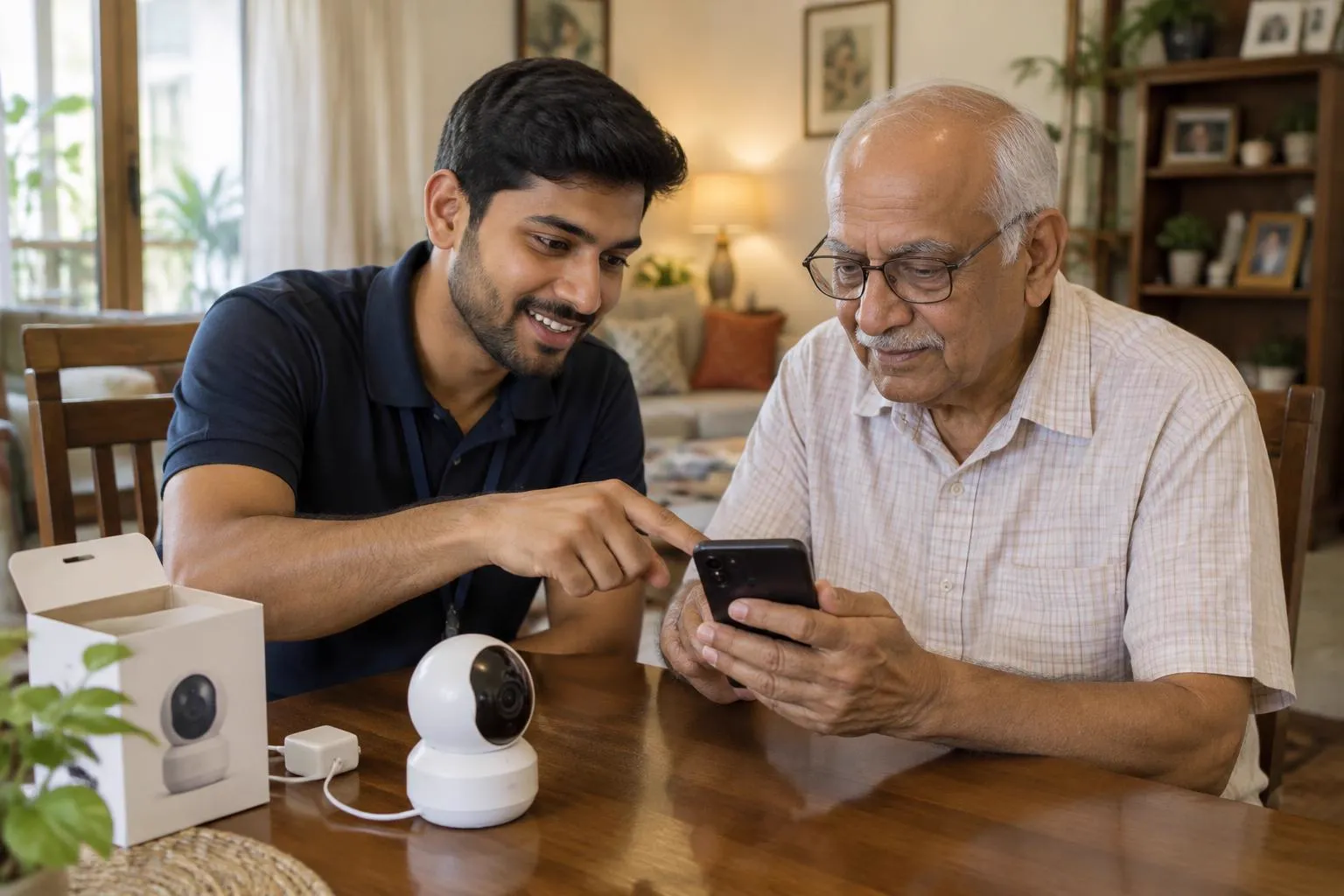
The best thing about a modern CCTV system is checking your home or shop from your phone — whether you are at work, travelling, or just upstairs. The good news: almost every system sold today can do it. Here is exactly how to set it up, and what to do when it doesn't connect.
1. What you need before starting
- A DVR/NVR with network port (for wired systems) or a Wi-Fi camera.
- Internet at the camera location — broadband with a router. The upload speed matters more than download; even a basic plan is usually enough for one or two cameras.
- Your phone (Android or iPhone).
- The manufacturer's app — every brand has its own free app; your installer or the box/manual will name it.
2. Connecting a wired system (DVR/NVR) to your phone
- Connect the recorder to your router with a network (LAN) cable.
- Power on the recorder and open its network settings — enable DHCP (or let your installer set a fixed IP).
- Install the manufacturer's app on your phone from the Play Store / App Store.
- Create an account in the app and choose "Add device".
- Scan the QR code shown on the recorder (usually in Settings → Network or on a sticker on the box) — or enter the device serial number manually.
- Set a strong password for the device when asked.
- Done — live view and playback now work on mobile data or any Wi-Fi.
3. Connecting a Wi-Fi camera to your phone
- Plug in the camera and wait for the indicator light / voice prompt.
- Install the camera brand's app and create an account.
- Tap "Add device" in the app.
- Connect your phone to your home Wi-Fi (2.4 GHz) — most budget cameras do not support 5 GHz Wi-Fi. This is the number-one setup failure.
- Scan the QR code the app shows with the camera lens (or enter the Wi-Fi password as the app directs).
- Wait for the confirmation, name the camera ("Main Gate", "Shop Counter"), and you're live.
4. The most common problems — and fixes
"Device offline" in the app
- Check the recorder/camera has power and the router's internet is working.
- Reboot the router and the recorder.
- If it happens daily, your ISP connection is unstable — a common NCR complaint. A dual-ISP or 4G-backup router solves it.
Camera won't pair (Wi-Fi cameras)
- Make sure the phone is on 2.4 GHz Wi-Fi, not 5 GHz.
- Move the camera closer to the router for setup, then relocate it.
- Reset the camera (pinhole button, hold ~10 seconds) and start over.
Live view buffers or lags
- Lower the stream to "SD/Fluent" in the app when on mobile data.
- Check your broadband upload speed; heavy usage at home (someone uploading videos) chokes the camera stream.
Forgot the device password
- Use the app's "forgot password" flow, or the reset procedure in the manual. Keep the new password written somewhere safe — not on a sticker on the camera.
5. Security: three things to do immediately
Viewing your cameras on the internet means you must lock the door behind you:
- Change every default password — camera, recorder, and app account.
- Update firmware when the app offers it; updates fix security holes. This matters more than ever now that India mandates security testing for CCTV equipment (PIB, March 2026).
- Don't share your app login — use the app's "share device" feature so family members get their own access you can revoke.
A note for the curious: searching "how to hack CCTV" mostly finds advice about default passwords — which is exactly why step 1 above protects you.
6. When to call a professional
DIY works for one Wi-Fi camera. Call a technician when: the recorder has no network port configured, you want cameras viewable on multiple family phones, port-forwarding or a static IP is involved, or the system is at a shop/godown where downtime costs you money.
We set it up for you — free with installation
Every CCTV system Cyber Vision Enterprises installs across Delhi NCR includes full phone setup: app installed on your family's phones, passwords changed, live view and playback tested in front of you. Existing system not connecting? We fix those too.
- Mobile / WhatsApp: +91 96543 04262
- Email: info@cybervisionenterprises.com
- Address: 193 JDS Royal Enclave 2, Bisnoli, Gautam Buddha Nagar, Uttar Pradesh – 201306
- Hours: Mon–Sun, 9:00 AM – 9:00 PM
FAQ
Can I see my CCTV on my phone from another city? Yes. Once the recorder or camera is connected to the internet and added to the app, live view and playback work from anywhere.
Why won't my Wi-Fi camera connect to 5 GHz Wi-Fi? Most budget cameras support only 2.4 GHz. Connect your phone to the 2.4 GHz network during setup.
Does watching CCTV on phone use a lot of data? Live view in SD uses modest data; HD streaming uses much more. Switch to "Fluent/SD" mode on mobile data.
Can multiple family members view the same cameras? Yes — use the app's device-sharing feature so everyone has their own login.